How Restore Works in CloudLess
Restore is the point of backup. CloudLess lets you browse protected files, choose versions, select a destination, and restore encrypted backup data back into usable files.
How Restore Works in CloudLess
Backup only matters if restore works.
It is easy to focus on uploading files because that is the visible daily activity. A backup job runs, files are processed, and storage usage changes. But the real test comes later, when a file is deleted, a laptop fails, or a clean version is needed.
CloudLess is built around that recovery moment. Restore is not an afterthought. It is part of the main file workflow.
What You Need To Restore
To restore from CloudLess, you generally need four things:
- Access to your CloudLess account.
- The encryption password or recovery material required to unlock backup data.
- Access to the storage location that contains encrypted backup objects.
- A device with CloudLess installed.
The exact recovery path can vary by setup, but those are the important pieces. If you lose storage access, the app cannot fetch backup data. If you lose encryption material, client-side encrypted backups may not be decryptable. That is the privacy tradeoff.
The right time to check these requirements is during setup, not during an emergency.
Browsing Backed-Up Files
CloudLess lets you browse protected files from the Files view. You select a backup configuration, then inspect the files and versions available for restore.
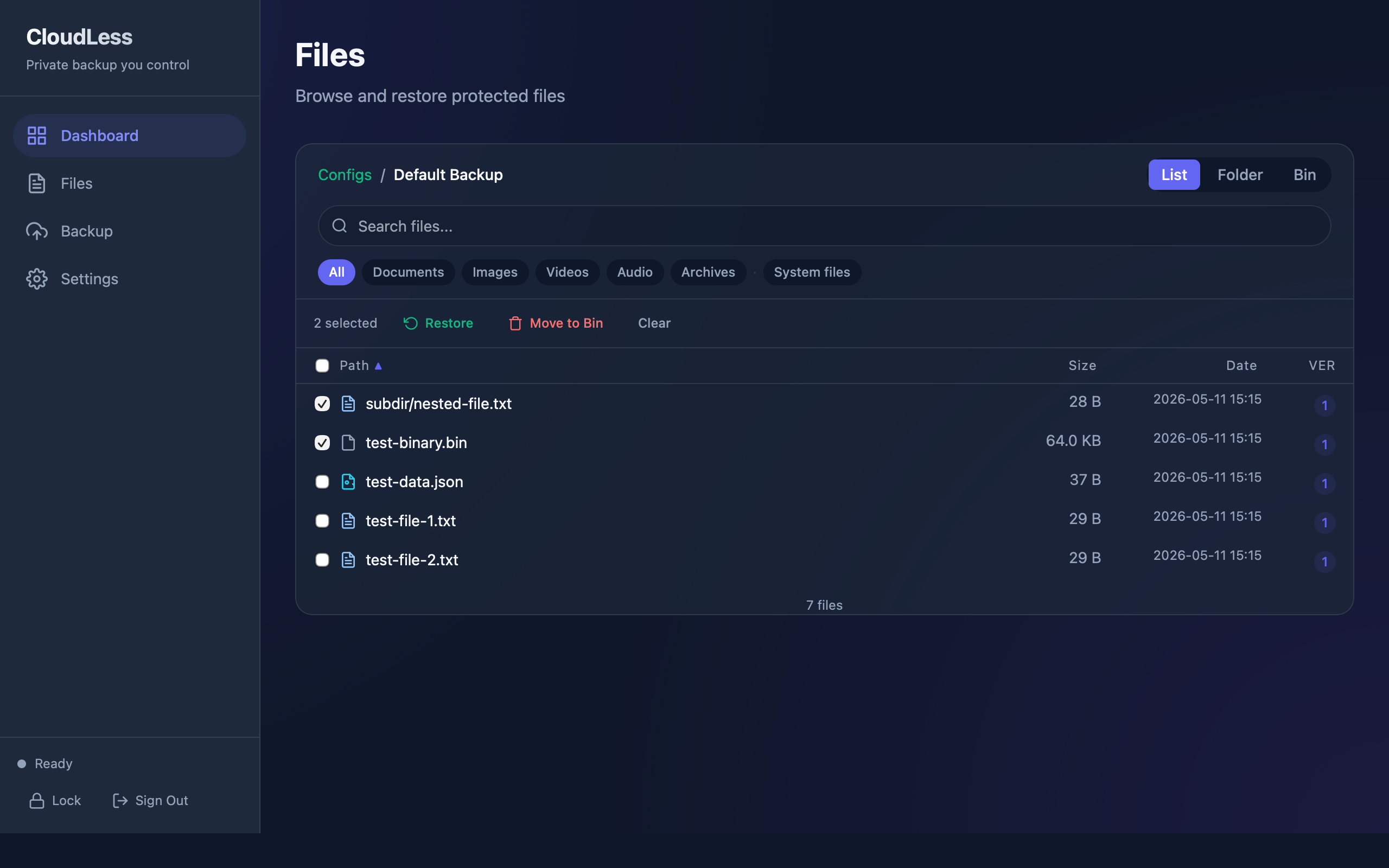
This is different from searching through raw storage objects. Your connected storage target contains encrypted backup data. The app gives you a human workflow for choosing what to restore.
You can restore a single version or select multiple files. The restore controls are placed in the file browser because restore should be close to the file history.
Choosing A Version
Files can have multiple backed-up versions. That matters when the latest version is not the version you want.
If you accidentally overwrite a document, you may want yesterday's copy. If a file is encrypted by ransomware, you may want a clean version from before the incident. If a project file becomes corrupted, you may need to try more than one previous version.
CloudLess tracks versions so restore can target the right state, not only the newest state. The file list and version details help you identify what is available.
Choosing A Destination
Restore should not force one behavior. Sometimes you want the file back in its original location. Sometimes you want a safe review folder. Sometimes you want to restore to a custom path so you can compare files before replacing anything.
CloudLess supports destination choices in the restore flow, including restoring to the local filesystem or to supported cloud storage destinations. You can restore to the original location, the Downloads folder, a custom local path, or a connected storage target such as OneDrive or SFTP where supported.
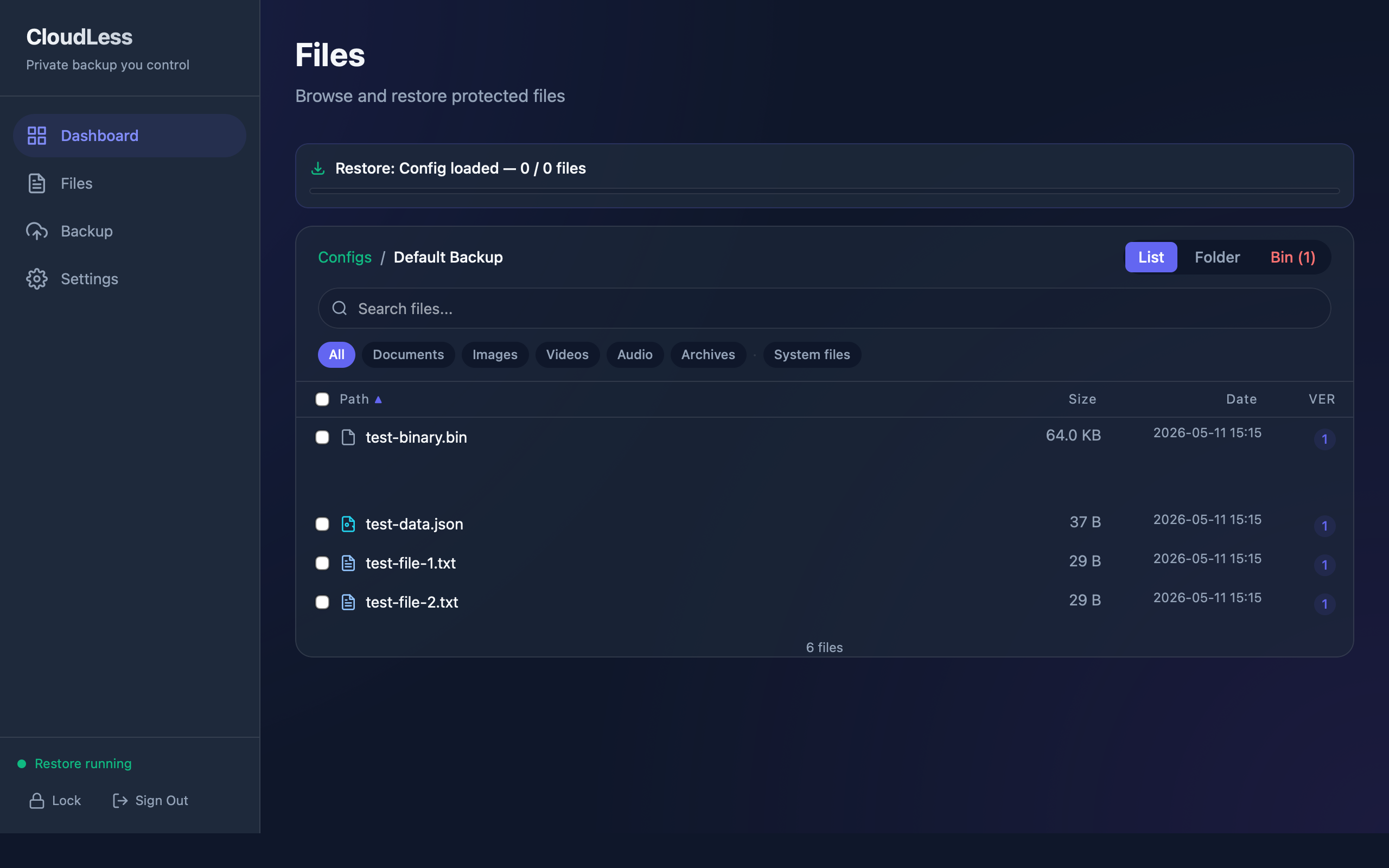
The review step helps avoid accidental restores to the wrong place. That matters when files have similar names or when you are restoring multiple items.
How Encrypted Data Becomes A Local File
CloudLess stores backup data in encrypted form. During restore, the app fetches the encrypted chunks and metadata needed for the selected file version, decrypts them locally, verifies data integrity, and writes the restored file to the chosen local or cloud destination.
The storage provider should not need to understand the file. CloudLess uses the user's encryption material locally to turn encrypted backup data back into a usable file.
This is why the encryption password and recovery material matter. They are not account decoration. They are part of the recovery path.
What Happens If A Device Is Lost
Device loss is one of the common reasons people need backup. A laptop can be stolen, damaged, or wiped. In that case, restore should be possible from a new device if the user still has the required account, encryption, and storage access.
The practical recovery sequence is:
- Install CloudLess on a new or clean device.
- Sign in.
- Unlock encryption using the password or recovery material.
- Connect or confirm access to the storage target.
- Browse available backups.
- Restore the needed files.
This is the flow every user should test at least in a small way. You do not need to simulate losing a laptop. You can restore a sample file to a different folder and confirm the result.
Restore Reports
Restore activity should be visible. If a restore job runs, the app should show whether it completed and which files were involved. That helps users avoid guessing after a restore operation.
Reports are also useful when troubleshooting. If a file did not restore, the job detail can point to whether the issue is storage access, missing backup data, integrity validation, or destination path handling.
Backup products earn trust through this kind of operational clarity. A silent restore failure is worse than a visible failure because the user may not know data is still missing.
Why Restore Tests Are Required
A backup that has never been restored is an assumption.
Run a simple restore test after setup:
- Choose a small non-critical file.
- Run backup.
- Restore the file to a different folder or a supported cloud storage destination.
- Open it.
- Confirm the contents are correct.
- Confirm you know where recovery material is stored.
Repeat the test after major changes, such as switching storage providers, changing encryption password, replacing a device, or changing retention settings.
Common Restore Mistakes
The most common restore problems are practical:
- Backing up the wrong folder.
- Forgetting the encryption password.
- Losing the recovery key.
- Deleting or changing storage credentials.
- Restoring to the wrong destination.
- Assuming sync history is the same as backup history.
- Never testing restore until a real incident.
CloudLess can make the workflow clearer, but users still need to keep recovery material safe and verify that backup covers the right files.
How To Think About Recovery Readiness
Recovery readiness is not a feeling. It is a checklist:
- I know which folders are protected.
- I know where encrypted backup data is stored.
- I know how to unlock encryption.
- I know how to browse versions.
- I have restored a test file successfully.
- I understand my retention settings.
If one of those answers is unclear, fix it while things are calm.
Download CloudLess and run your first restore test. A small test now is better than a guess during a real recovery.