Backup vs Sync: Why Cloud Drives Are Not Enough
File sync keeps devices up to date. Backup keeps recoverable versions. The difference matters when files are deleted, corrupted, encrypted by ransomware, or lost with a device.
Backup vs Sync: Why Cloud Drives Are Not Enough
Cloud drives are useful. They make files available across laptops, phones, and browsers. They make sharing easier. They reduce the risk of losing the only copy of a file when one device breaks.
They are not the same thing as backup.
That difference matters most when something goes wrong. A synced folder is usually designed to keep the latest state of files consistent across places. A backup system is designed to preserve recoverable states over time. Sync is about convenience. Backup is about recovery.
If you use Dropbox, Google Drive, iCloud Drive, OneDrive, or another sync tool, you may already have some protection. Many of these services keep deleted files or older versions for a limited time. That can help. It does not mean every important file is covered by a complete backup strategy.
Sync Mirrors The Current State
Sync tools watch folders and copy changes between devices and cloud storage. If you edit a spreadsheet on your laptop, the new copy appears on your desktop. If you add a photo on your phone, it can appear on your computer. This is the behavior people want from sync.
The same behavior can also copy mistakes.
If you delete a folder by accident, sync may delete it everywhere. If a file is overwritten with bad data, sync may push the bad version everywhere. If malware encrypts files inside a synced folder, the encrypted files may become the newest synced state.
Some sync services include version history, trash recovery, or ransomware recovery features. Those features are useful, but they depend on the provider, plan, retention window, file type, account status, and whether the affected files were inside the synced area. Many users do not know those details until they need recovery.
Backup should be clearer than that.
Backup Keeps Recoverable Versions
A backup system should answer a different question: can I get back a useful copy from before the problem happened?
That means backup needs version history. A good backup does not only know that tax-return.pdf exists today. It should know that the file existed yesterday, last week, or before a destructive change. The restore workflow matters as much as the upload workflow.
This is why versioned backup is different from file sync. If the current file is wrong, the current file is not enough. You need an older clean version.
CloudLess is built around that recovery model. It backs up protected files as encrypted versions to storage you control. The goal is not to replace every sync tool. The goal is to cover the failure cases where sync is weak.
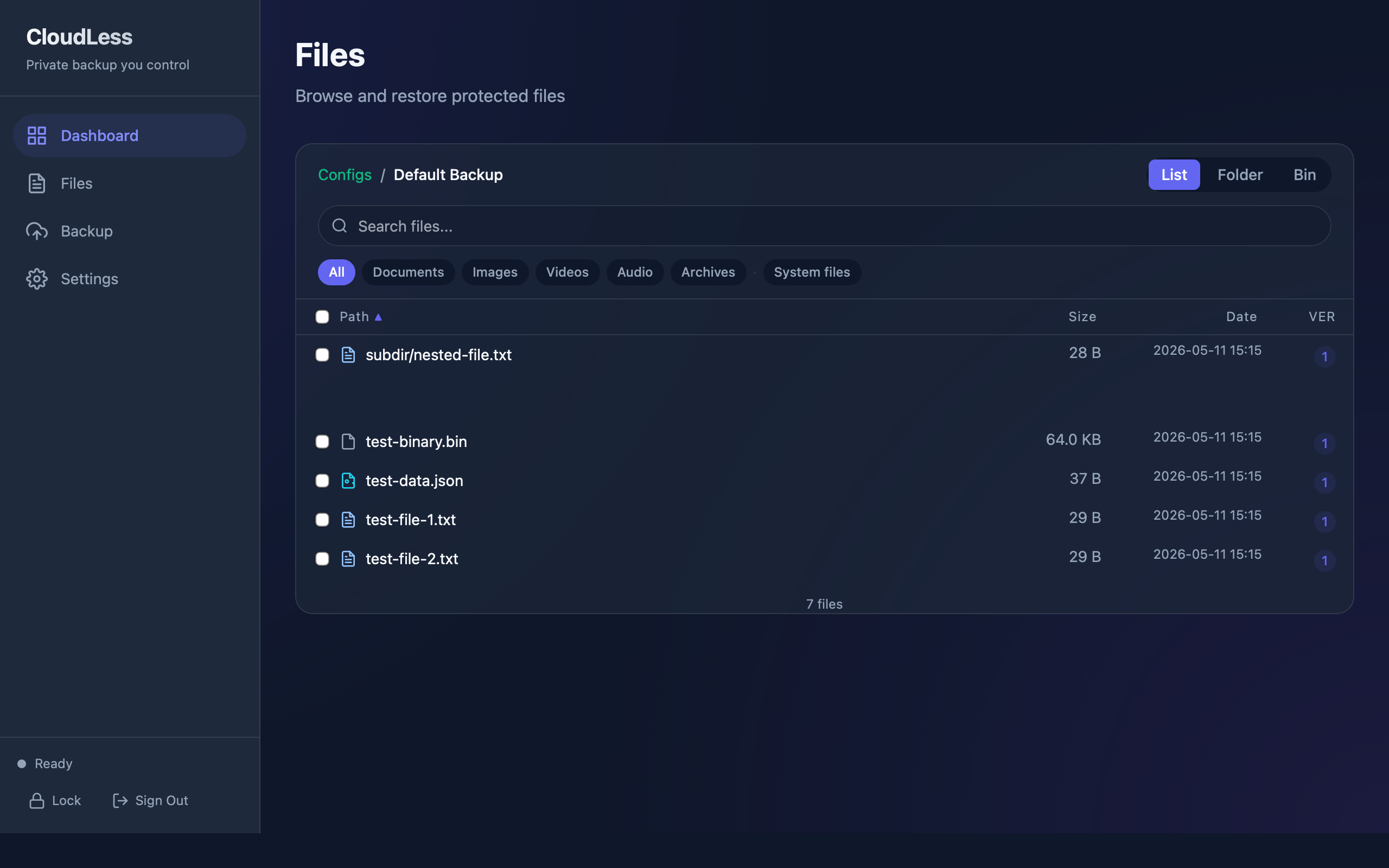
The Files view is built around browsing protected files and restoring versions. That is the core difference: backup software should make recovery a first-class workflow.
Deletion Is A Common Failure Case
Accidental deletion is one of the simplest examples. A folder is selected by mistake. A cleanup script removes more than expected. A shared folder member deletes something without realizing others still need it.
With sync, deletion can spread quickly. If the provider keeps a trash record, recovery may still be possible. If the retention window has passed, or the deleted folder was not inside the synced area, recovery may fail.
With backup, deletion is expected. A backup system should retain previous file states according to a retention policy. You should be able to find the deleted file and restore it without depending on the current folder state.
Corruption And Bad Saves Are Harder To Notice
Not every data loss event is obvious. A file can be corrupted by a failed write, bad export, broken app, disk issue, or interrupted sync. A document can be saved with the wrong contents. A project file can become unreadable.
Sync may preserve the broken version because it is now the latest version. That is not a bug in sync. It is what sync is designed to do.
Backup helps when you can identify the last good version and restore it. The longer the issue goes unnoticed, the more important retention becomes. A short trash window is not enough for every real problem.
Ransomware Makes The Difference Clear
Ransomware often changes many files quickly. It may encrypt local files and leave ransom notes. If those files are in a synced folder, the encrypted copies can become the newest cloud copies.
Recovery depends on having clean versions from before encryption. It also depends on storage credentials, retention, and whether the attacker could delete or overwrite backup data.
Backup cannot prevent every ransomware incident. It can reduce the damage if it preserves clean historical versions and if the restore path is tested before an incident.
Device Loss Is Not The Only Risk
Many people think about backup only as a response to a stolen laptop or failed hard drive. That is one valid use case, but it is not the only one.
The more common pattern is quieter: a file is deleted, overwritten, corrupted, misplaced, or encrypted. The device still works. The cloud account still works. The user still needs an older copy.
That is why a backup product should be judged by restore quality, version history, and clear ownership of the stored data.
Where CloudLess Fits
CloudLess is for people who want private backup to storage they control. It focuses on three ideas:
- Files are encrypted before they leave the device.
- Backups are versioned so older file states can be restored.
- Storage belongs to the user, such as an S3-compatible bucket, Google Drive, OneDrive, SFTP server, or supported storage target.
That positioning is different from a normal sync folder. CloudLess is not trying to make the same file appear instantly on every device for collaboration. It is trying to protect data so it can be recovered later.
You can still use sync tools. Many users should. Sync is good for active files, shared folders, and cross-device convenience. Backup is the separate safety layer for recovery.
A Simple Rule
Ask one question:
If this file is deleted, corrupted, encrypted, or overwritten today, can I restore the version I need next month?
If the answer is unclear, you do not have a complete backup plan.
CloudLess exists for that gap: encrypted backup to storage you control, with restore as the point of the system.
Start With A Restore Test
The first backup is not the finish line. After setting up backup, restore a small file and confirm it opens correctly. A backup process you have never restored from is still an assumption.
Protect your files with encrypted backup to your own storage. Download CloudLess and run a restore test before you need one.